


There is a wide variety of study tools that allow students to have a tutoring session on a topic or source of their choosing, including MagicSchool and general AI platforms like ChatGPT. But Google’s NotebookLM stands out by providing a repository for students or instructors to compile class resources in one place and a variety of ways to study from those resources. Moreover, Google has recently added features that make it an even more powerful study tool.
Defining the resource range
The power of NotebookLM lies in the user’s ability to define the sources that the system will use to create content and answer questions. This means that an instructor or student can create a notebook for each topic or module of a course, enter all the course content for it, and study just that content, ensuring that outside information will not lead them astray.
The user first creates a new notebook, gives it a name, and then enters sources in the form of PDFs, links to websites and videos, and content on Google Drive. Instructors who set up notebooks can easily share them with their class via a link.
One update is that users can host content on Google Drive and link it to a notebook. The advantage of this setup is that the notebook automatically reflects any updates to that content. This is ideal for group work as a group can use a Google Doc for planning purposes and have the notebook content incorporate modifications.
Once a user adds sources to a notebook, the system creates a page that is divided into three sections, like the one below for the module on ethical issues in genetics for my medical ethics class:
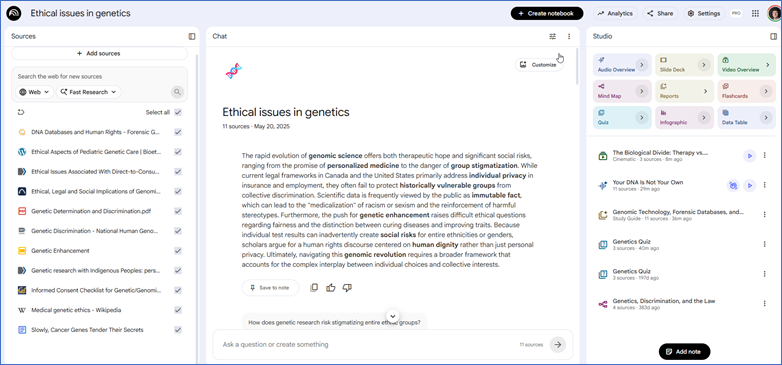
The left panel lists the sources in the notebook. The free version allows for up to 50 sources, which is generally plenty for a topic, whereas the pro plan allows for up to 300. The right panel, called Studio, contains a list of ways to interact with those documents; I will cover those features next. The middle Chat panel shows the content that the user asks the system to create. By default, the Chat panel starts with a summary of the topic, along with some suggested study questions, as well as a summary of each individual source.
Study features
A student can begin by simply asking the system questions in the chat feature, such as “Explain the ethical debate between genetic therapy and human enhancement.” They can also ask the system to tutor them with a prompt like “Tutor me on the issues brought up in their sources by asking me questions and helping me with answers when I am wrong or get stuck.” When I entered that prompt, the system replied as follows:
We’ve touched on the Genetic Information Nondiscrimination Act (GINA) of 2008, which prevents health insurers and most employers from requesting or using your genetic information to make coverage or hiring decisions. However, this law has a few very specific and significant limitations.
Can you name at least two types of insurance that GINA does not protect you against, or name the major US employer that is legally allowed to use your genetic information to make employment decisions?
I can now engage in a kind of Socratic dialogue with the system to explore in depth. I can also pick which of the sources the system will consult in a chat or other study feature by checking the ones to use in the Sources pane, or I can check “Select all” to have the system draw from all the sources.
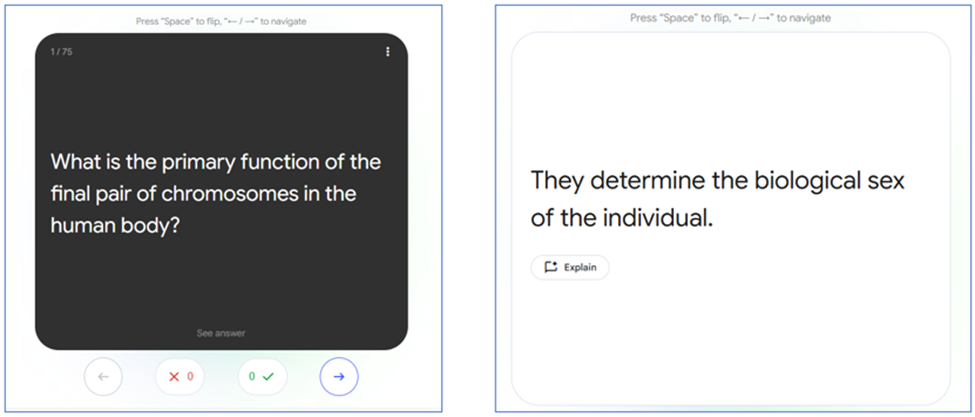
I can also have the system create a quiz on any or all sources to help me study. The quiz is multiple-choice, with an option to get a hint on a question if I am stuck. Moreover, I can have it create flash cards from the sources, like the one below:
Students also have a variety of media options for getting overviews of the material. For instance, they can have the system create a remarkably lifelike audio overview of a source or sources. The audio is in the informal format of an NPR segment, with little to suggest that AI created it. Another newer feature is the video overview, which will create a video about the topic that is of nearly professional quality.
Another interesting feature is the Mind Map. I choose the source or sources I want, and the system parses them into topics and subtopics, as in the example below:
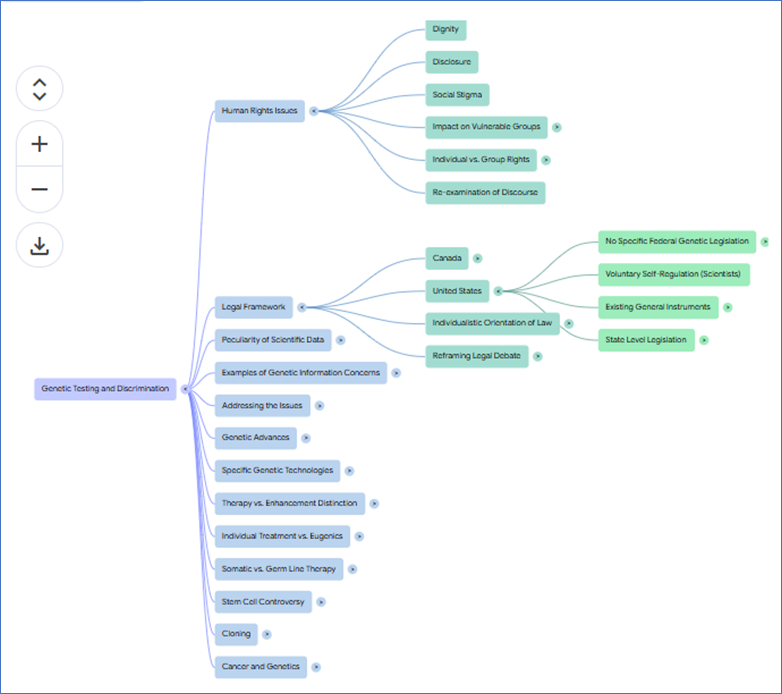
When the user clicks a box in the outline, it opens a new level of subtopics, which open onto sub-subtopics, and so on. For instance, I first clicked the blue Legal Framework box and then the green United States box, and it opened four more subtopics, along with a discussion of each of them in the middle Chat panel. Here’s how that discussion began:
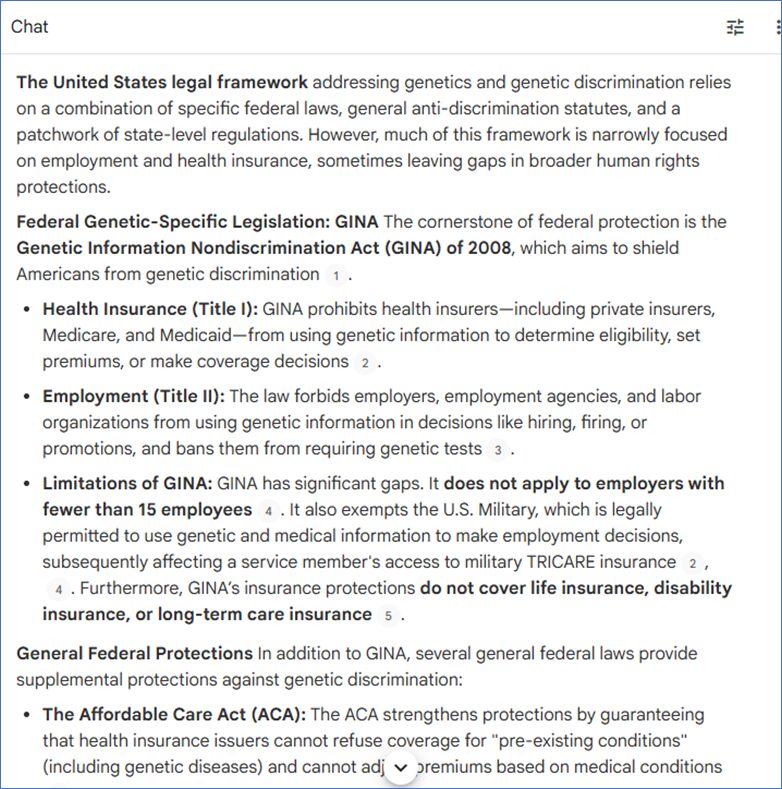
Mind Map is a really powerful feature because it allows students to bore down into topics that they do not fully grasp. Plus, students often have trouble knowing what to study, and they end up trying to memorize facts rather than grasp conceptual issues. The Mind Map solves that by directing their exploration into concepts.
There are two other recent updates that students will find helpful. First, the middle Chat panel includes citations for where the system found its information. Clicking on one of these opens a summary of that source in the Sources panel, showing the exact text that the system used to create its content. This feature allows students to verify the accuracy of the system’s summations.
Finally, Google recently upgraded the system so that all the functions are available on smartphones and other mobile devices, whereas previously only the general summary was available. This means that students can study while riding the bus to and from campus, eating in the cafeteria, or doing whatever else. Together with the other features, this upgrade makes NotebookLM an excellent one-stop shop for guiding students’ study in their courses.
John Orlando is a professor of philosophy at Colorado Technical University and an educational consultant who leads workshops for faculty on how to use AI and other technologies to improve their teaching: jorlando2001@gmail.com.
The post NotebookLM: The Best Study Tool for Students appeared first on The Teaching Professor.